Genuine App Store app · One-time purchase

Shadowrocket User Guide

Official guidance for iPhone / iPad: verify the one-time purchase, import existing configurations, and understand Global Routing and routing rules.

Config On Demand Shadowsocks VLESS

Configuration, routing, and connection checks

First confirm that your existing server connects, then adjust rules and automatic triggers. These six sections are organized by task, with interface labels kept in English.

Global Routing and rule order

Global Routing determines how traffic is handled after connecting. Config applies rules from the selected configuration file; Proxy routes traffic through the selected proxy; Direct connects without a proxy. To use rules, first check which configuration is selected in Config, then choose Config in Global Routing. Rules are checked from top to bottom, and processing stops at the first match. Put specific conditions before broader ones, and place FINAL at the end. The domain shown is a syntax example, not a replacement for a complete configuration of your own.

  • PROXY, DIRECT, and REJECT specify how traffic is handled.
  • Back up your configuration before editing, and change one condition at a time when testing.
Read the complete user guide →
[Rule]
DOMAIN-SUFFIX,apple.com,DIRECT
IP-CIDR,192.168.0.0/16,DIRECT
DOMAIN-SUFFIX,example.com,PROXY
DOMAIN-KEYWORD,ads-example,REJECT
FINAL,PROXY

App purchase
≠ server plan

Shadowrocket is a closed-source commercial app; the purchase covers use of the client. Connecting to a server still depends on having your own server details or subscription, and the terms for the app and those services should be checked separately. This site is the official website and manual. It does not provide, sell, or recommend servers or subscriptions; this manual explains how to import your existing content, understand configurations, and check connection results.

Verify the genuine app: developer, icon, and app ID

On the App Store product page, first confirm the product name is Shadowrocket and the developer is Shadow Launch Technology Limited. Then compare the store icon with the official icon in this site's header, and check the app ID in the product page URL: 932747118. Verify all three details together rather than relying only on a name or icon in search results. If a result looks similar, return to the product page and check each detail before purchasing.

The product description, compatibility, purchase details, and update history are available on the App Store listing. Check that listing for system requirements. The steps in this manual explain the configuration process; they do not replace the store's assessment of whether the app is compatible with your device. If the listing says your device is not supported, check the compatibility section and your device's OS. Rules and server details do not affect purchase eligibility.

One-time purchase: check the price separately from connection services

The US storefront price is about $2.99; prices appear in local currency on other storefronts. The amount charged is determined by the App Store checkout page. A one-time purchase covers the app itself; it does not include a usable server or change the term of a subscription you already have. After purchase, the servers available in Home depend on the content you import, and the rules in Config must be checked separately.

If the app is installed but there are no servers to select, gather your existing connection details and choose Add Server, Subscribe, or Scan QR Code based on the information you have. If you have imported a server but cannot connect, check its parameters, your current network, and whether the related service is active instead of purchasing the app again. Keeping purchase issues separate from connection problems can prevent unnecessary reinstalls and preserve the original configuration for troubleshooting.

App Store availability: check your storefront and the product page

App Store search results, displayed currency, and purchase availability may vary by storefront. If you cannot find the app, use the direct product page and check your current store account, the page details, and compatibility information. Search ranking does not confirm an app's identity. Before purchasing, confirm which Apple Account will be charged and which account you use to manage purchases, so you can find the original purchase record when you switch devices.

When using a purchase on iPhone and iPad with the same Apple Account, check the product page for the applicable purchase terms. Check the store's information to see whether Family Sharing applies; do not assume purchases or app configurations will automatically transfer just because two devices belong to the same family. Purchase history can help restore the app, while subscriptions, rules, and preferences saved on a device require separate management.

Restore and update: app purchase history is not a configuration backup

When switching devices or reinstalling, first confirm the original purchase account in the App Store, then find Shadowrocket in your purchased items. If the app still shows a price, check the account and purchase history before paying again. After restoring the app, check whether your server groups and configuration files are still available. If not, use a backup you saved or the app's sync feature, and confirm the selected entry before reconnecting.

App updates are managed through the App Store. You can check automatic update settings on your device. Before migrating devices or making significant configuration changes, keep a restorable copy and note Global Routing, the current server, and any essential settings. If access changes after an update, first verify the selected configuration and mode, then identify the specific difference. Changing several options at once makes the cause harder to pinpoint; checking them in order is more reliable.

Get Shadowrocket on iPhone / iPad and connect for the first time

Get the app from the App Store on either device. First verify the listing and complete the purchase, then prepare your own server details. Installing the app, granting system permission, and importing a configuration are connected but separate steps.

Follow the same checklist for your first connection

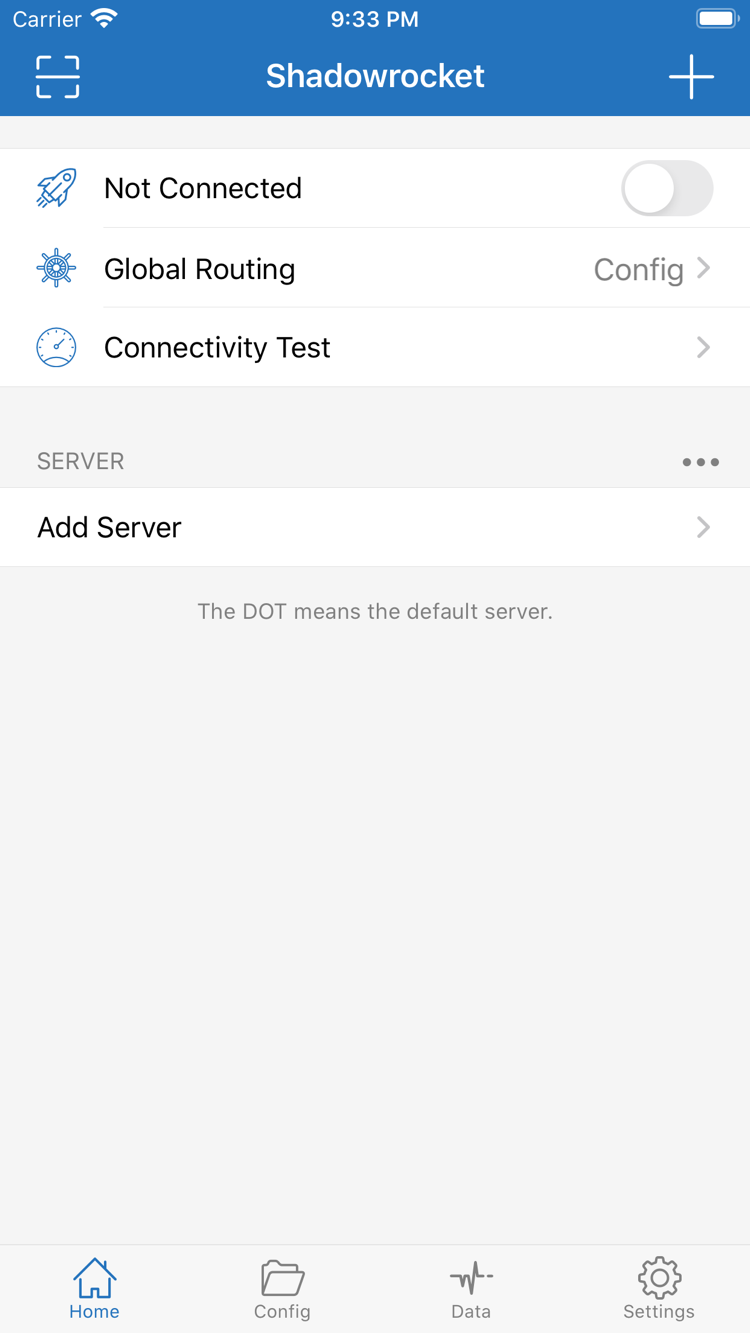
After installation, open Home and check whether your information is for an individual server or a subscription URL, then choose the corresponding import method. When entering details manually, check Type, Host, Port, and authentication fields one by one. After importing, make sure the list is complete before selecting an entry to test. Labels, region notes, and sort order can help identify entries, but cannot replace checking the parameters. Use the fields in your existing service details; do not guess real values from examples.

Next, check which configuration file is selected in Config, then choose a Global Routing mode. Config applies rules; Proxy and Direct help explain how traffic behaves along different paths, but a temporary troubleshooting setting is not a finished rules setup. After connecting, visit a clear test destination, then check Data and the behavior in the app you are using. A VPN status indicator means the connection configuration is enabled; it does not mean every domain uses the same route.

When something fails, first distinguish an import failure, a server test failure, and an issue affecting specific sites after connecting. For an import failure, check the input and make sure the address is complete. For a failed server test, check the network and connection parameters. If only certain sites fail, review the matching rules and name resolution. During troubleshooting, disable unnecessary automatic triggers, keep the original configuration, change one thing at a time, and record the results. For step-by-step instructions, see the user guide; for how settings relate across each stage, read the complete user manual.

First, distinguish three commonly confused concepts

A subscription is not a configuration file: subscriptions mainly manage server entries, while files in Config mainly manage rules and related settings. After updating one, check that the other still suits your needs. Latency tests are not the same as real-world performance: results depend on the test method and network conditions, so they cannot tell you on their own how quickly a page will load or how a sustained transfer will perform. Sync is not a backup: sync makes content available across devices; a backup lets you restore an earlier state. If a term is unfamiliar, look up Global Routing, FINAL, Subscribe, and On Demand in the glossary before returning to the app.
Technical guides: from setup questions to connection checks

Each article addresses one specific question. First identify whether you are getting the app, importing content, selecting a server, or testing a connection, then read the relevant guide. This helps avoid changing settings from different stages at once.

View all articles →