Shadowrocket Setup Guide
Add an Existing Configuration → Choose Global Routing → Connect and Verify
Follow five steps on iPhone or iPad to establish a connection you can verify. Start with simple settings, then adjust rules and On Demand one at a time.
The images are official App Store screenshots, provided to help identify screens and fields. The interface on your device may differ. Choose one of the two methods below; there's no need to enter the same information twice.
Add Server: Add a Server or Import a Subscription
To confirm that an item was added, return to Home and look for a selectable entry in the SERVER group. Seeing an entry only confirms that the details were saved; it doesn't mean authentication is correct or that you're connected. First determine whether your information is a complete subscription URL or the protocol and details for a single server, then choose the matching option.
Have Server Details? Enter Them Field by Field
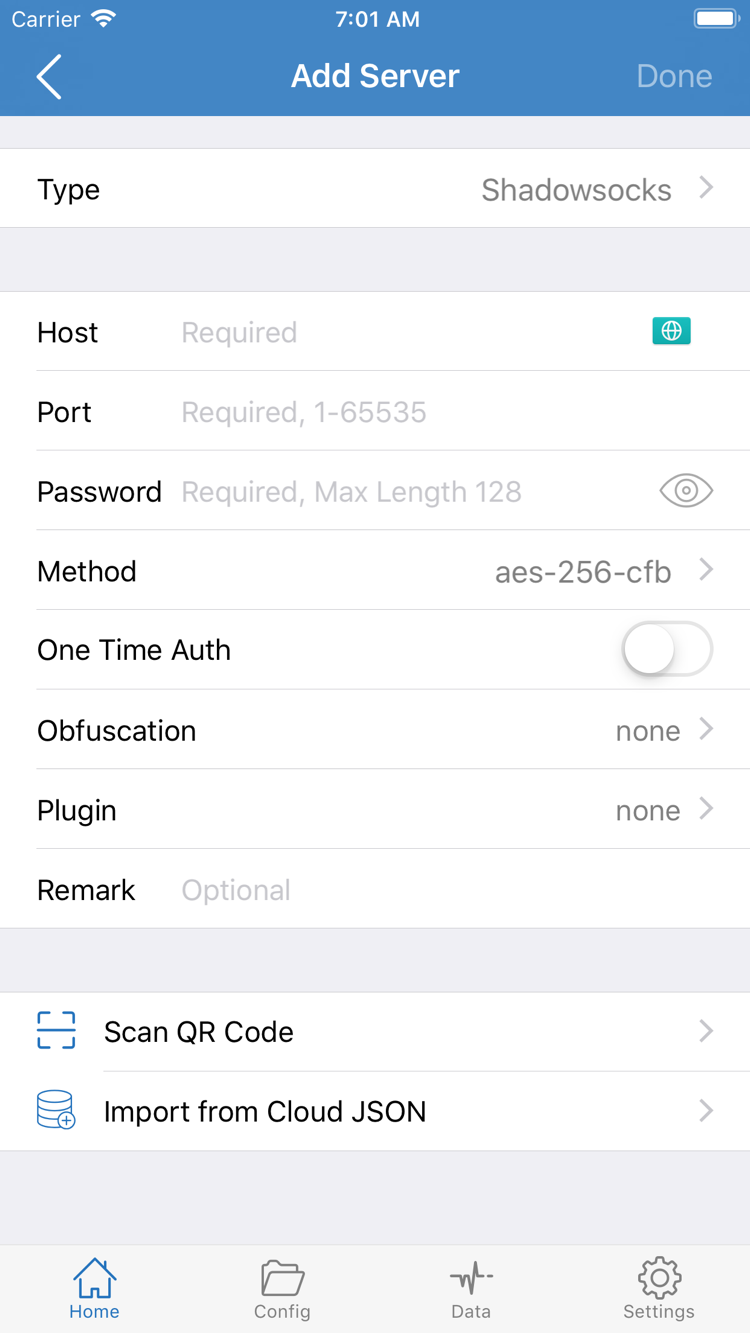
On Home, tap Add Server to open the add screen. Tap Type and select the protocol explicitly listed in your details. Type determines which fields appear; don't guess based only on the server name or address. The screenshot shows Host, Port, Password, and Method for the selected type. If you choose another Type, fill in the fields shown for that type instead.
For Host, enter the domain name or IP address from your existing details; don't paste the entire subscription URL. Enter the matching port, taking care not to include spaces. Password and Method must match your details exactly—don't replace them just because another option looks more common. Check any additional authentication or transport settings as well. If information is missing, ask your service provider rather than trying random values.
At the bottom of the screen, Scan QR Code lets you scan your own compatible QR code. Allow camera access if needed for scanning. Check the Type and server fields after scanning; a successfully read QR code doesn't guarantee that its details are still valid. Import from Cloud JSON is a separate import option, not the same as Subscribe. If you only have a standard subscription URL, you don't need to use it.
Have a Subscription URL? Use Subscribe
In Add Server, select Subscribe from Type, paste your complete subscription URL into the relevant field, add a label you can recognize, and save. Keep the original path and query parameters intact; don't copy just the domain or use the browser page title as the URL. Treat subscription URLs like passwords, as they may contain personal credentials.
Wait for the content to load, then return to Home and check the subscription group and server entries. If the group appears but contains no servers, first check that the URL is complete, your current network can access it, and the service is still active. Don't create multiple identical groups. A subscription generally manages a set of server details, while Config manages configuration files and rules; these are different operations.
Once you've completed this step, keep one entry ready to test. If you're unsure about a protocol or field, check the glossary. For help organizing multiple configurations, see the complete user guide.
Global Routing: Choose Config, Proxy, or Direct
After adding a server, return to Home and tap Global Routing. This setting determines how traffic is handled; the selected entry in SERVER provides the details needed for a proxy connection. Selecting a server while Direct is enabled won't test whether that server's proxy connection works. Check both settings together.
When to Use Each Mode
- Config: Routes traffic according to the current configuration file's rules. Different destinations may use different policies, so not every request will use the selected server.
- Proxy: Handles traffic through the proxy. This can reduce the effect of configuration rules during troubleshooting, but the server details must still be correct and the service available.
- Direct: Connects directly. Use this to compare with access on your usual network; it does not test whether a proxy server is working.
If you already have a configuration file for a specific purpose, check its rules first, then select Config. To test whether a newly added server can establish a working connection, you can temporarily select Proxy for comparison, then restore the mode you need. Don't treat a temporary troubleshooting setting as the right choice for every situation.
Check the Current Configuration Before Using Config
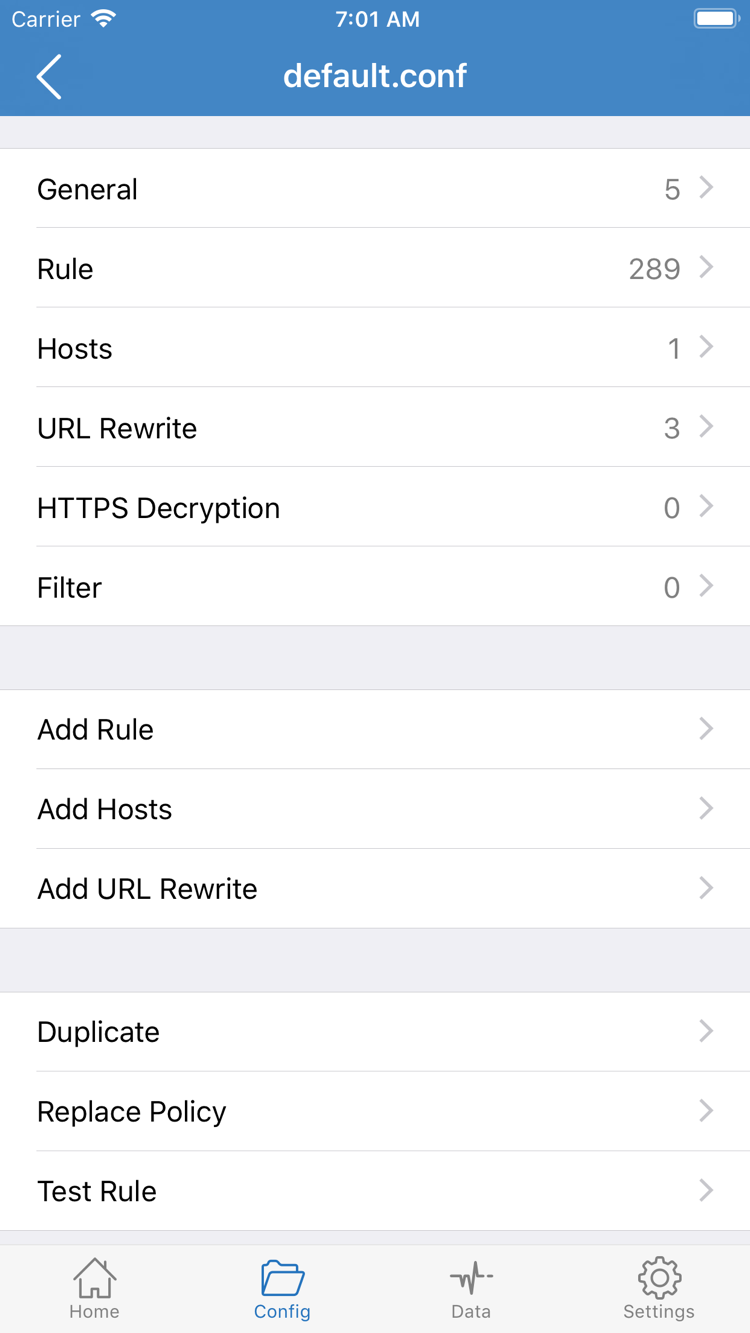
Open Config, confirm which configuration file is selected, then review its contents. The official screenshot shows sections such as General, Rule, Hosts, URL Rewrite, and HTTPS Decryption, along with the Add Rule option. For this initial setup, focus on Rule: understand how traffic to your test destination will be handled. You don't need to enable features in the other sections just to connect for the first time.
Rules in Rule are matched from top to bottom, and the matching rule determines the policy. DIRECT means a direct connection, PROXY means proxy handling, and REJECT means the request is blocked. FINAL handles traffic that hasn't matched an earlier rule. The example below illustrates the syntax; it isn't a complete configuration file, and you shouldn't replace your existing content with it:
[Rule]
DOMAIN-SUFFIX,example.com,PROXY
FINAL,DIRECT
In this example, requests to example.com and its subdomains use PROXY. Traffic that doesn't match an earlier rule is sent to DIRECT by FINAL. The actual result still depends on the full rule order and current configuration. Save your original configuration before editing so you don't remove settings you need. Rule writing and matching involve more detail; continue with the complete user guide. For now, finish the connection check on this page.
Home: Select an Entry and Connect
Return to Home, select the server you want to use in the SERVER group, then check Global Routing. For your first test, use just one entry. Avoid changing On Demand, the test method, and multiple configurations at the same time so you can tell which change caused a problem.
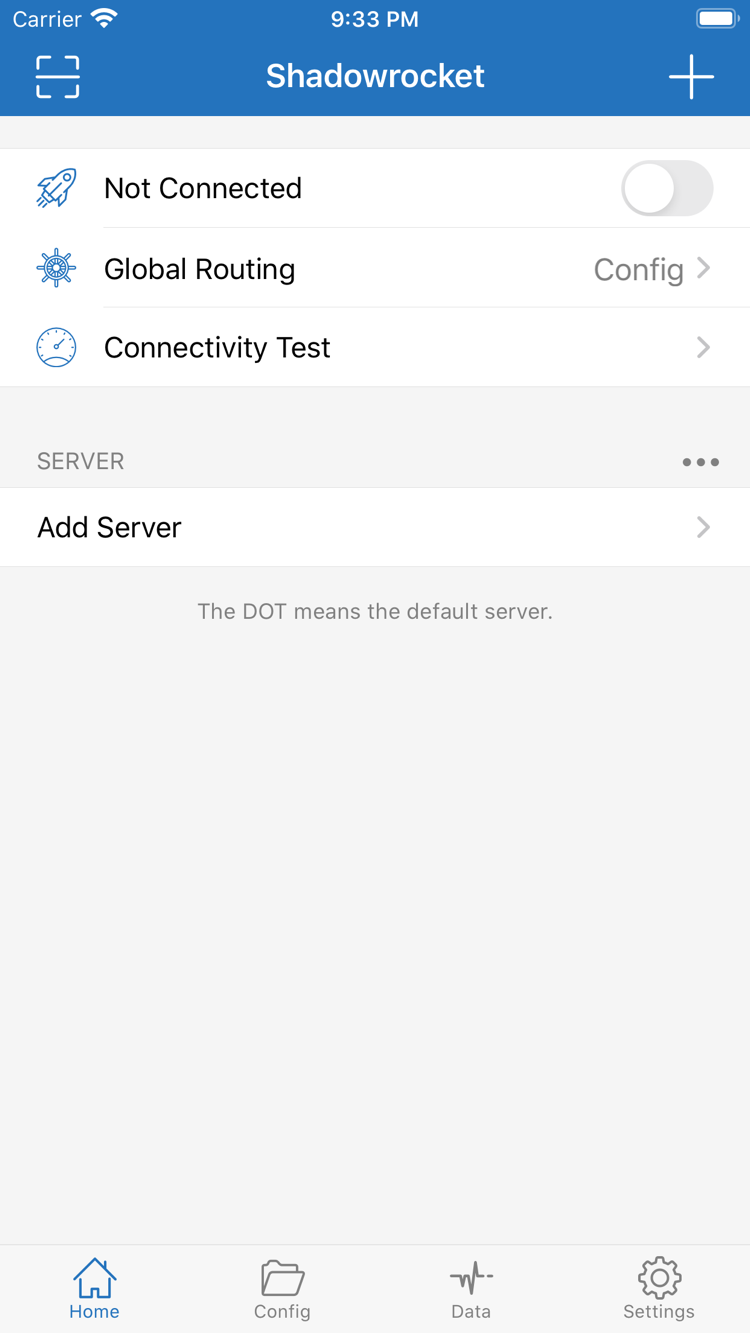
Find the connection switch at the top of Home. In the official screenshot, Not Connected means no connection has been established. After confirming the server and mode, turn on the adjacent switch. The first time you connect, the system may ask permission to add a VPN configuration. This allows Shadowrocket to create the system configuration needed to handle device network traffic; it doesn't ask you to buy the app again or enter your subscription password.
Once you've confirmed the prompt was triggered by your current action, follow the system interface to grant permission and authenticate, then return to Shadowrocket. Any request for a passcode or other authentication depends on the system prompt. Don't enter your device passcode in the Add Server Password field: system authentication and server authentication are separate.
If you dismissed the system prompt earlier, try connecting again in the app and watch for the permission screen. If your device is managed by an organization or another VPN connection is active, check the device's usage restrictions and current connection status first. Don't repeatedly delete system configurations if you're unsure what they're for. Make a note of the prompt you see; this is usually more helpful than repeatedly toggling the switch.
After granting permission, check whether the status at the top of Home changes from Not Connected and whether the switch stays on. Establishing a system VPN connection is only the first part of verification: server authentication, destination reachability, and rule handling still need to be checked. Once the status changes, keep your current settings and proceed to verification; don't immediately change multiple entries.
To end this manual test, return to Home and turn off the connection switch. If it connects automatically afterward, check in Settings whether On Demand is enabled and review its trigger conditions. Don't assume that automatic reconnection means the switch is broken.
Connectivity Test: Verify the Connection
To assess whether a connection works, check the test, actual access, and traffic changes—not just the switch. From Home, run Connectivity Test and wait for it to finish, then note the result. If the test fails, keep the current server and mode while you troubleshoot in order. If it succeeds, still check whether the app or website you want to use actually works.
Understand What the Test Results Tell You
Connectivity Test reports how the selected test method and its target performed at that time. A single latency reading can't prove that every website will load or be converted directly into file transfer speed. Results from different Test Method settings aren't directly comparable. To check whether a change helped, keep the test method consistent and compare what happens before and after.
Next, open a website or app you normally use and can access under your current network conditions, then make a new request. Don't rely on a cached page: seeing old content doesn't mean a new request succeeded. For an initial check, choose one clear destination and confirm that fresh content loads before testing more.
Compare the Results with the Current Mode
If you're using Config, first check which rule should match your test destination. If it matches DIRECT, a page loading normally doesn't prove that the proxy server works. If it matches REJECT, a failure may be the expected result of the configuration. To distinguish a rule issue from a server issue, temporarily switch to Proxy and repeat the request on the same network with the same server, then restore your original setting.
You can also check Data for changes in traffic as supporting evidence that a request occurred. Background tasks on your device can also use traffic, so an increase in the total alone doesn't prove that a particular website used the expected policy. Consider the time of the action, the destination, and traffic changes together; this is more reliable than looking only at the cumulative total.
Record the combination that worked: selected server, Global Routing mode, current configuration, and test network. After a successful check, add any other settings you need one at a time. If only one destination fails, check its rule and reachability before changing everything. If all access fails, continue to the next step and start with the basic network checks.
Settings: Troubleshoot Based on Where It Fails
Change one setting at a time and repeat the same verification action after each change. First identify where the problem occurs: the subscription won't load, the switch won't stay on, the test fails, or only one website fails. These issues call for different checks; repeatedly reinstalling the app isn't a substitute for finding the cause.
Subscription Is Empty or Server Details Are Incomplete
First disconnect and confirm that the device's normal network works. Then check that the subscription URL is complete. A URL that won't load and a server connection that fails are different issues: in the first case, you may not have any usable entries yet; in the second, the connection fails despite having an entry. For a manually added server, reopen its details and check Type, Host, Port, and authentication parameters. Look for spaces, line breaks, or missing information introduced while copying. Ask your own service provider about service status and usage requirements.
Switch Turns Off or All Requests Fail
Check that permission for the system VPN configuration was granted, look for a specific error message, and confirm that the correct server is selected. Compare authentication details with your existing information; don't weaken security-related settings just to troubleshoot. To compare Wi-Fi and cellular networks, use the same entry and mode on each network, and ensure your test complies with the network's usage requirements. Different results after switching networks indicate that the network path may need further investigation; they don't identify a specific server parameter as the cause.
Test Results Don't Match Actual Access
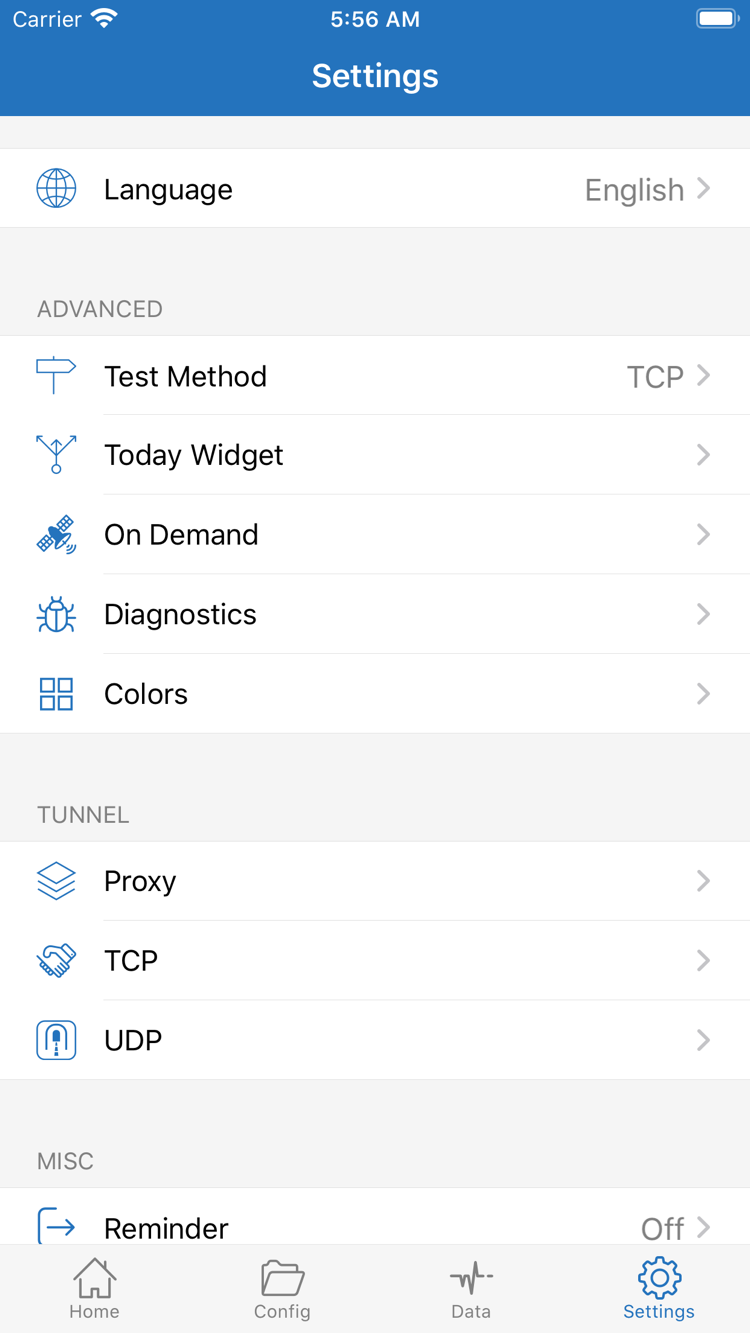
In Settings, find Test Method and note the current selection. Different test methods may check different targets and produce results with different meanings. Consider actual requests too; don't keep changing methods just to get a lower number. If access works in Proxy but fails in Config, first check the Rule order, destination policy, and FINAL in Config. There's no need to immediately re-enter the server password.
Reconnects After You Turn It Off, or You Need More Diagnostics
Check On Demand in Settings. If On Demand conditions are configured, a network change or relevant request may trigger another connection. For a clearly defined manual test, note the existing conditions, temporarily disable On Demand, then restore it for its original purpose after testing. Don't change several automation conditions at once, or it will be hard to tell which one took effect.
For more information, check Diagnostics in Settings. Note when the failure occurred, the network in use, the selected server, Global Routing, and any error message. Diagnostic logs may contain domain names, addresses, or authentication details. Review and redact sensitive information before sharing details with anyone; don't publicly share a full subscription URL, password, or QR code.
Settings also includes items such as Proxy, TCP, and UDP; you don't need to change them for this initial setup. Adjust a setting only after identifying the specific issue you need to resolve. For more on configuration management, reviewing Data, and troubleshooting, see the complete user guide. For definitions, see the glossary.